
Troubleshooting Steps
Enpro Filler Vent Tube Reader (FVTR/TS)
What Does the Screen Color Mean?
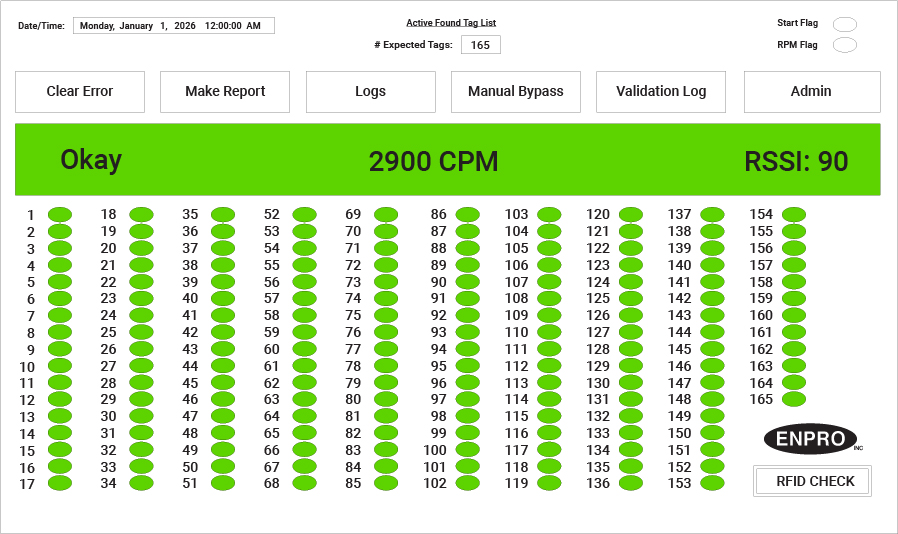
Green — All clear, running normally
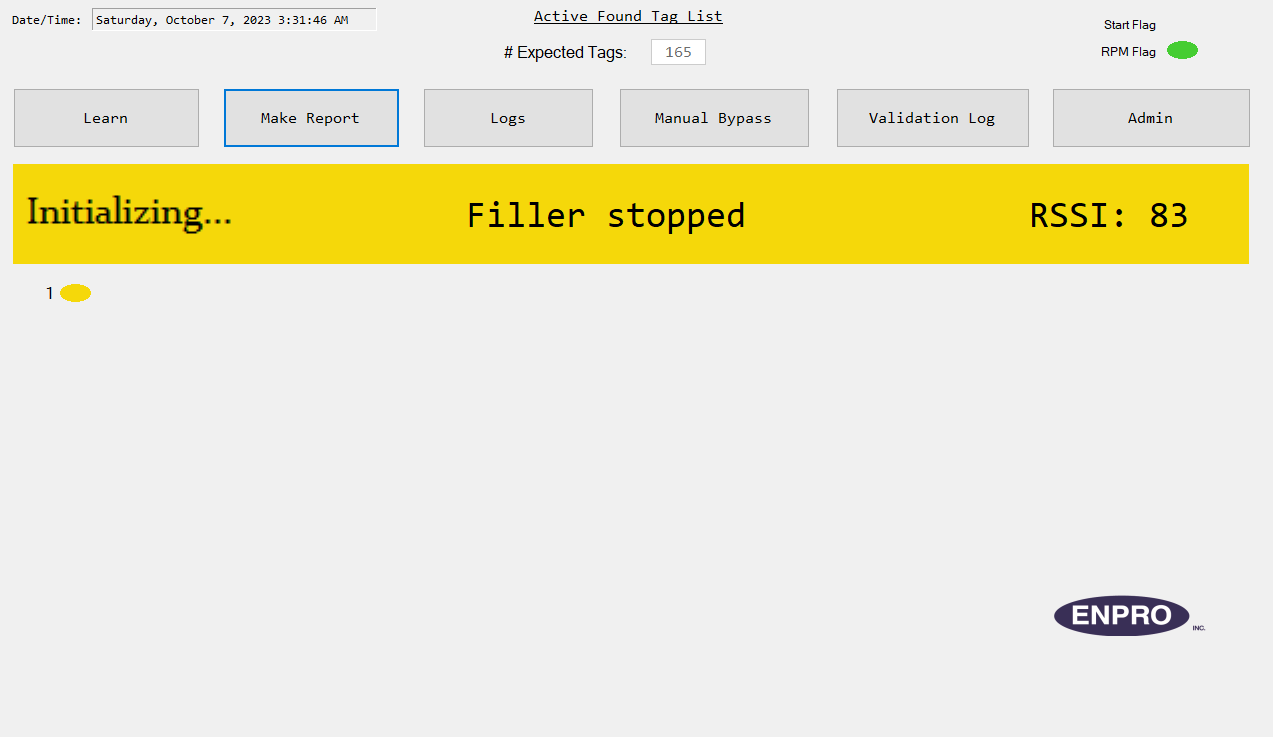
Yellow — Initializing, no action needed
Blue — CIP mode active, detection off
Purple — Manual bypass, detection suspended
Red — Error, filler has stopped
Off — No power, check supply
Error Guide
Filler Stopped
Notification OnlyWhat you'll see Screen says "Filler Stopped." Nothing is wrong with the FVTR — it's waiting for the filler to restart.
- Restart the filler from the Filler HMI. No action needed on the FVTR screen.
Vent Tube Missing
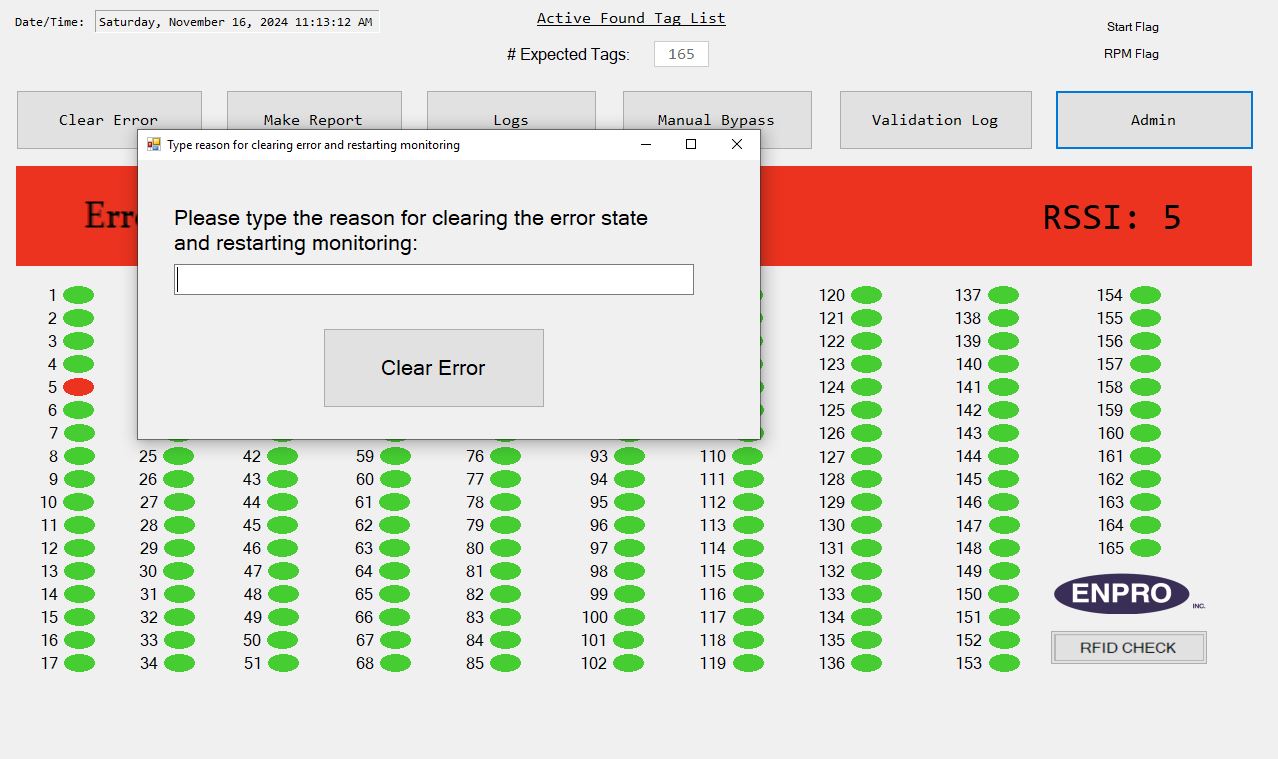
Filler DisabledWhat you'll see Red screen. A vent tube was not detected during a full rotation cycle. The filler has stopped.
- Note which valve number is highlighted on screen — that's the missing position.
- Go to that valve on the filler and locate or replace the missing vent tube.
- Tap Clear Error on the touch screen. Scan your badge when prompted.
- Type a reason (e.g., "Vent tube replaced at valve 12"), then tap Clear Error.
- Confirm. The filler will be allowed to restart.
Tip Keep 10 spare RFID vent tubes on hand at all times. Replace any tube older than 12 months during your annual PM — worn tubes are a common cause of false errors.
Antenna Alignment Error
Filler DisabledWhat you'll see Red screen: "Antenna out of alignment."
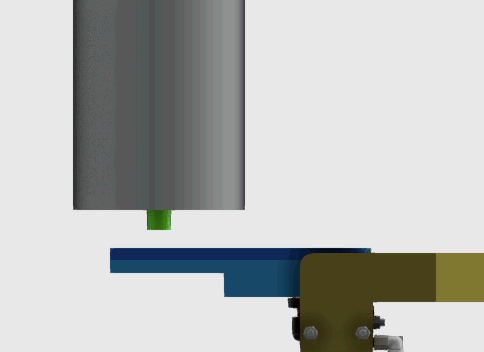
- Inspect the antenna. The face should be 1/4" to 1/2" from the reading position, with 1" clearance when retracted.
- Check that the rotating cylinder is Enpro-approved and has been replaced within the last 12 months. A non-approved cylinder is a common cause of this error.
- Verify air pressure is 80–100 PSI. Inspect pneumatic tubing for leaks or damage.
- Once corrected, tap Clear Error, enter a reason, and confirm.
Important The rotating cylinder must be sourced directly through Enpro. It is a custom all-stainless assembly not available from standard parts suppliers.
Antenna Not Rotating
Filler Disabled- Enable Manual Bypass on the touch screen. Watch the antenna for any movement as the filler cycles.
- Check air supply pressure — must be 80–100 PSI. Trace all pneumatic lines for kinks, damage, or disconnections.
- If pressure is correct and lines look intact, the rotating cylinder may need replacement. Contact Enpro Service for assistance.
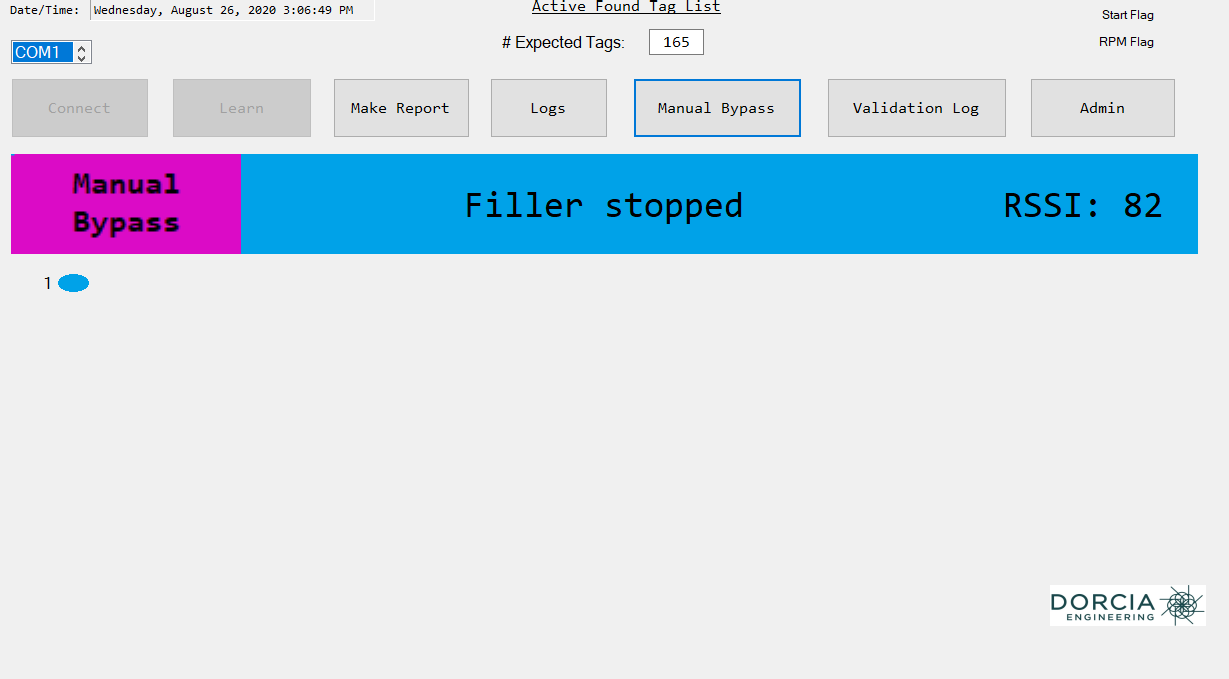
Home (Start) Flag Missing
Filler DisabledWhat you'll see Red screen: "Filler stopped, Start flag missing."
- Check the home flag sensor for proper alignment. This sensor is frequently bumped or rotated during cleaning and normal operation.
- Rotate it back into position if it has shifted. If the sensor itself appears damaged, see the Home Sensor Error section below.
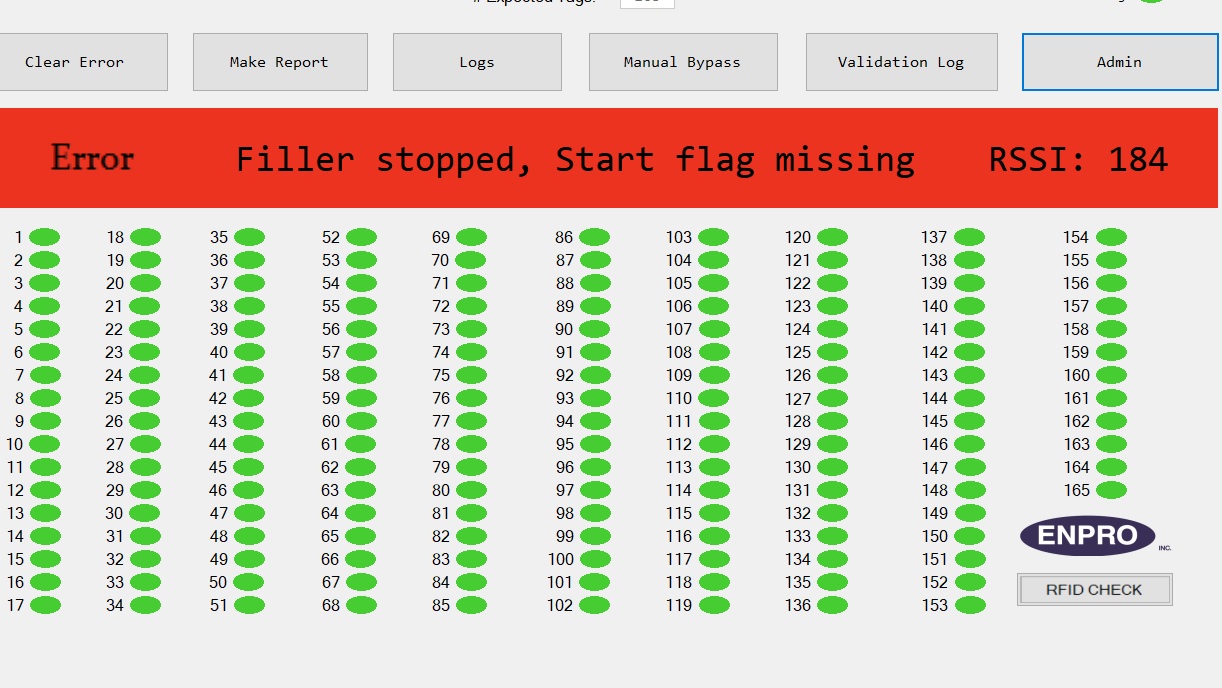
Home (Start) Sensor Error
Filler Disabled- Visually inspect the sensor for physical damage — especially after a crash or mechanical collision.
- If damaged, replace it with a spare.
- If not damaged, rotate it back into its correct position.
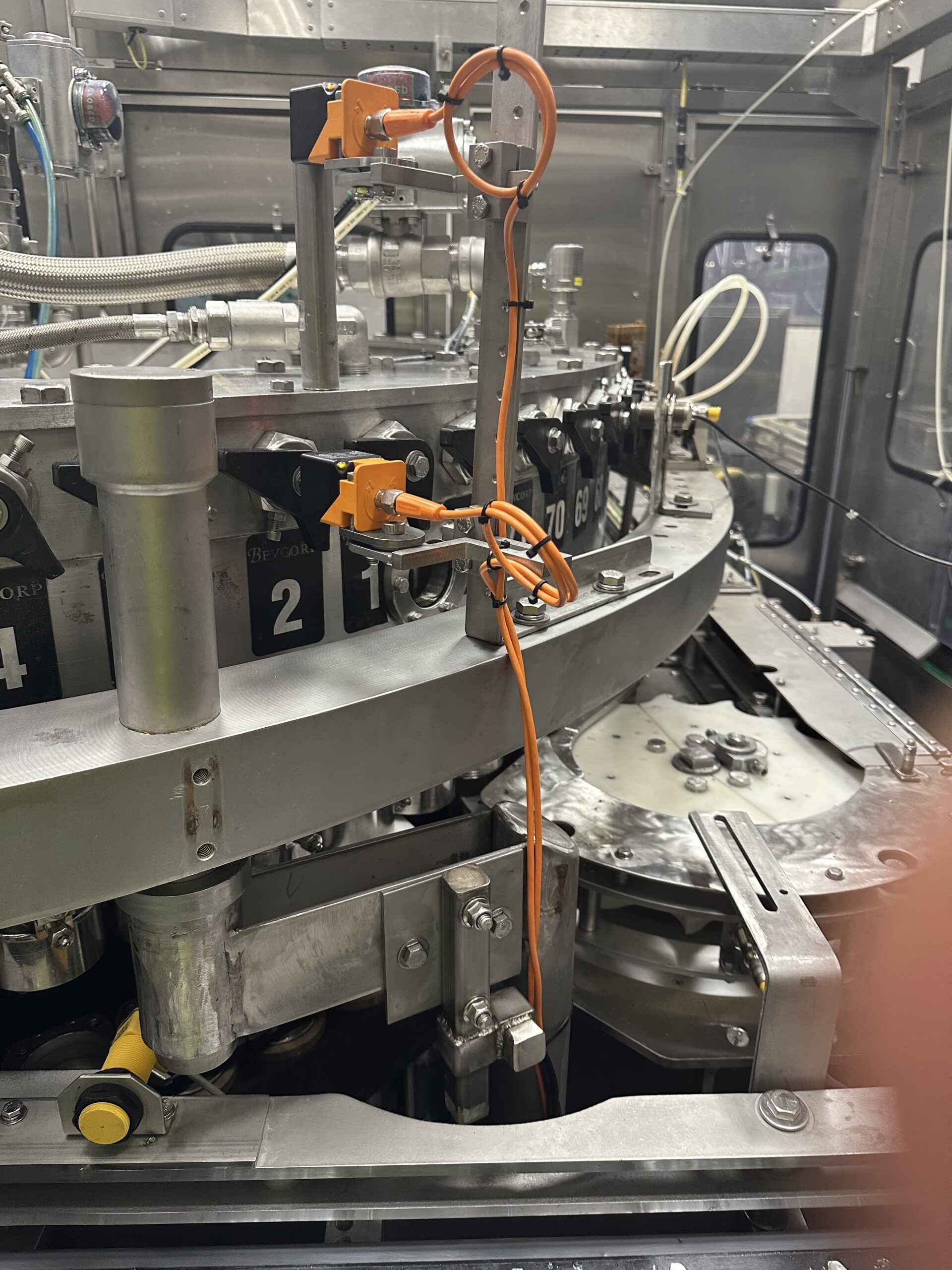
RPM (Butterfly) Flag Missing
Filler DisabledWhat you'll see Screen: "Filler stopped, RPM flag missing RSSI: 0."
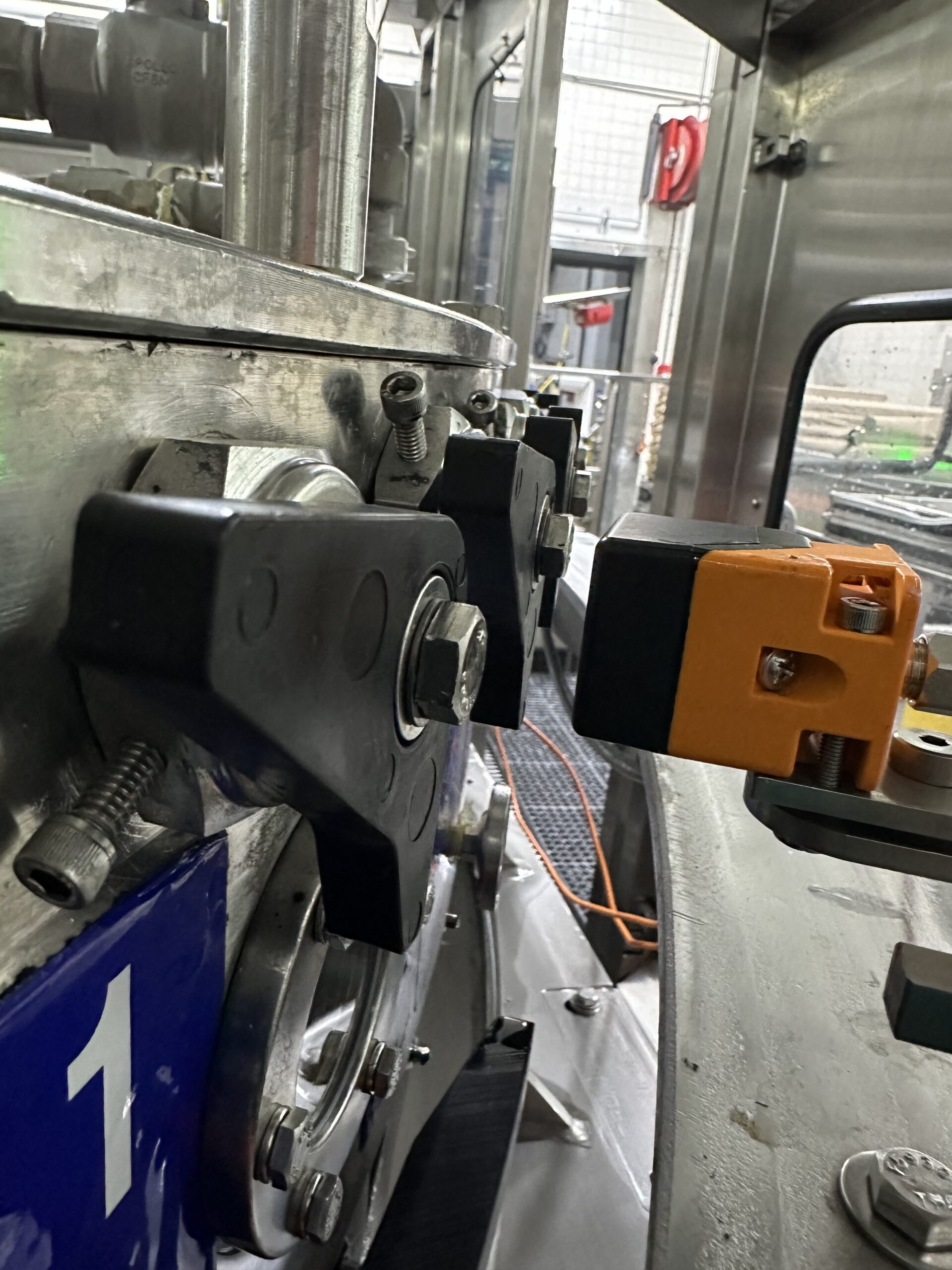
- Inspect the RPM sensor. Verify: it is in alignment, there is a 10mm gap between the sensor face and the butterfly hex head, the detent is locked, and all cables are in good condition.
- Replace the sensor or cable if damaged.
- Tap Clear Error, enter a reason, and confirm to restart.
RPM (Butterfly) Sensor Error
Filler Disabled- Check for physical damage — particularly after any crash or mechanical event.
- If damaged, replace the sensor.
- If undamaged, rotate back into the correct position.
HS USB Error
System FaultWhat you'll see Yellow screen: "Initializing… HS USB error RSSI: 0."
Do not plug a cell phone into the USB port. This can crash the system, corrupt software, or trigger Windows updates. It may require a full system restoration to fix.
- With power off, check the RS485 connection — there are two points to inspect:
- Connection 1: D-sub cable at the PC
- Connection 2: Ethernet cable at the Dorcia PCB board
- Inspect the ethernet plug end for corrosion or shorted pins.
- Re-seat the ethernet cable firmly into the Dorcia board.
- Check the black USB cable running from the top to the middle of the board — ensure it's fully seated.
- Restore power and check whether the error has cleared.


Low Air Pressure
System FaultRequired pressure The FVTR requires plant air at 80–100 PSI. Below 80 PSI causes a fault. Above 100 PSI risks cylinder and antenna damage.
- Confirm plant air supply is within the required range at the point of connection to the FVTR.
- Trace all pneumatic tubing from the supply connection to the antenna assembly. Look for kinks, disconnections, or damaged fittings.
Unknown State Error
System FaultWhat you'll see "Unknown State — Filler stopped." This usually indicates a communication fault between components.
- Confirm all cables are fully connected — power, antenna coax, signal wires, and USB connections.
- Check the RS485 cable from Com 1 to the ethernet connection on the Dorcia board. Verify the CIOS setting is configured for Com 1 (485).
- If the issue persists, contact AmeriChem Systems for support.
Temperature-Related Issues (Missed Reads / False Errors)
Performance IssueWhat's happening RFID chips inside vent tubes can be damaged by rapid temperature swings — for example, dropping quickly from 190°F to 38°F during CIP or cooldown cycles.
- Avoid rapid temperature changes. Allow vent tubes to pass through an intermediate temperature before reaching the target (38°F). A staged cooldown protects the RFID chip.
- Keep in mind that your machine monitors bowl temperature, but the vent tube sits inside the valve — the two may differ.
- Vent tubes and ball cages older than 12 months are more vulnerable to thermal failure. Replace annually during your PM.
Service + Support
Service and Support for your Enpro Filler Vent Tube System and Filling Vent Tube products and tools is provided exclusively by AmeriChem Systems Inc., a wholly owned subsidiary of Enpro, Inc.

Sales
Learn more how we can work together to help make your beverage filling process more efficient. Please fill out the form and we’ll get back to you as soon as possible.